Hmm... I see... so, you wanna learn how to use my Talking Guy? Allright, I'll teach you!
Ok, once you've opened the Talking_Guy.fla (only Flash CS3 / CS4), you should see something like this:
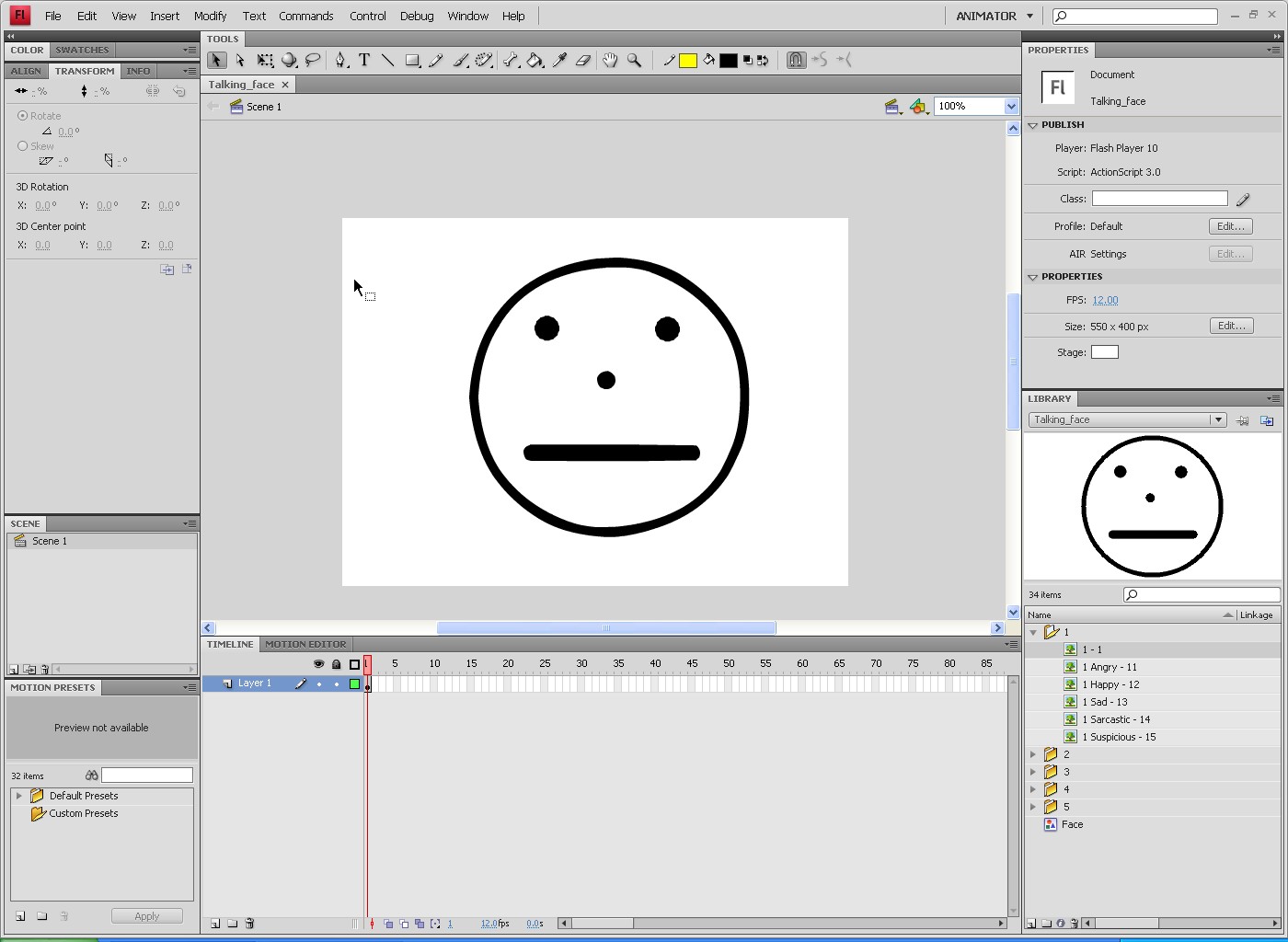
So, as you can see in the image above, we have the guy with his mouth closed, in the first frame. I'll create a new keyframe by pressing F6 on my keyboard. Remember that I have Windows, so I don't know what's the keyframe creation key at Mac.
Anyways, he keeps his mouth closed... To animate it, you need to copy the next image to a small piece of paper and put it somewhere you can clearly see it.
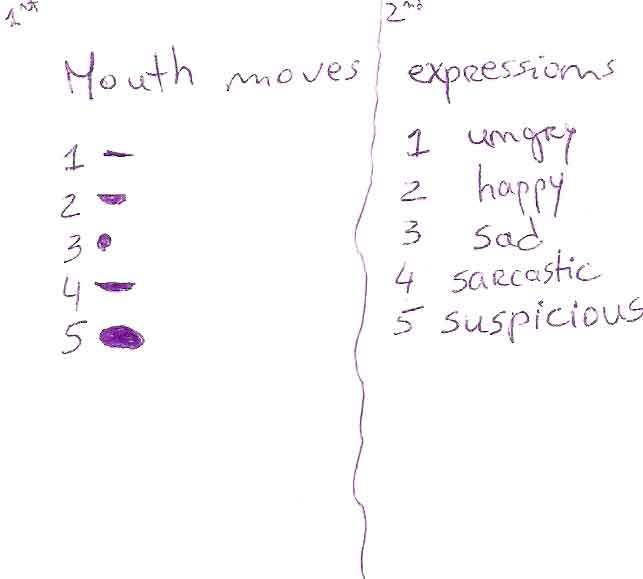
After coppying that (IT'S INEVITABLE!), go to Flash, select the face and look at the proprieties box.
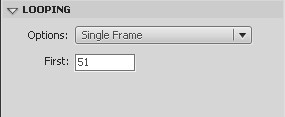
If you open the Loop box, you will see a dropdown box and a text field with a "1" on it. If in the dropdown menu isn't selecting the "Single Frame", just select it by clicking it. With that and with your small piece of paper, you are ready to start animating!
So, let's pick up the paper and just look at it... There are 5 numbers and draws at the right and 5 numbers and expressions at the left. At left are the mouth moves and at right are the expressions. In the text field of the Loop box, the rules are simple. If you only write a number (1 to 5), you will only change the mouth move. If you type in "3", the mouth move will be the one that is signed with a 3 in the paper. Try it.
Now, to add expressions to the character... First choose a mouth move. I'll pick up...5. Write in the Text Field and press Enter. You will have the 5 mouth move. And now you are thinking "Uhhh... This guy told me that already...", right?
I'll just shut my mouth and you'll just start learning...
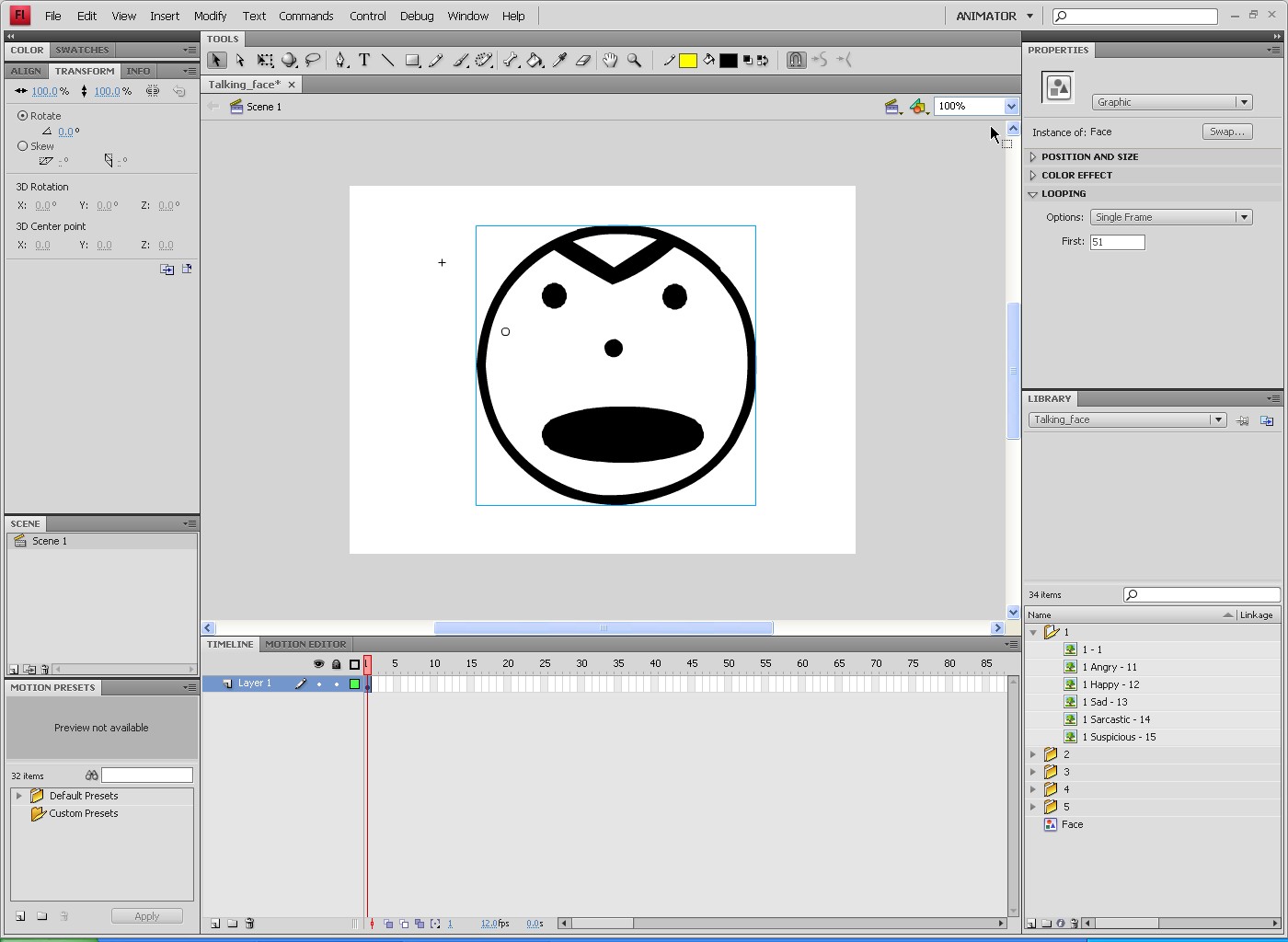
So, to add expressions, type in the correspondent number. I want a 5, but not serious. I want it to be, let's say... Happy. So, I'll type 2 as the second algarism and I'll get a two-algarism number like this:
Then, your guy should look like this:
Ok, now that you know how to change the Talking Guy face, you only need to change the mouth moves and the expressions acording to the animation.
THANKS FOR DOWNLOADING!
One more thing...
Don't edit the "Face" symbol. You may only change it to add some accessories to it, but I recomend to draw it on the stage.
